
Telliscope plans keywords for you, and you can add your own at any time. Both buttons are at the top of the Content Planner.
Import a list
- Click Add Keywords and stay on the Import tab.
- Type or paste your keywords, separated by commas or new lines. You can add up to 100 at a time.
- Under Article type for imported keywords, leave Automatic to let each keyword decide, so a "vs" keyword becomes a comparison. Or pick one type for all of them.
- Click the button below the list. For twelve keywords it reads Add 12 Keywords.
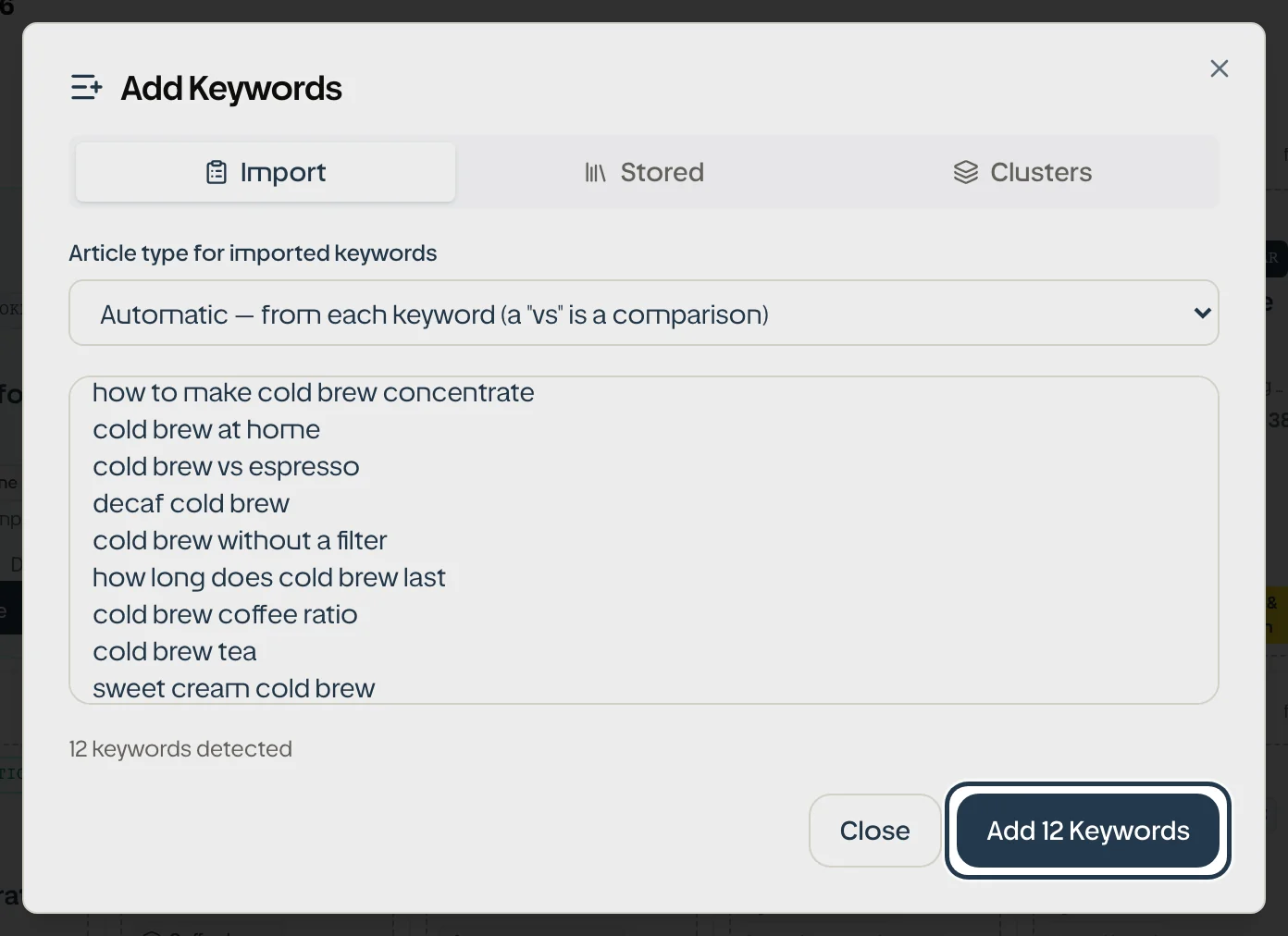
Telliscope adds them to your keyword pool and sorts them into topic clusters. When a page on your site already covers a keyword, the window tells you, so you can update that page instead.
When a page of yours already serves a keyword's search, the keyword goes into your pool without a date, so it won't compete with your page. Improve this page instead asks for an improvement to that page; the keyword stays in your pool. Schedule it anyway gives the keyword a date.
Note
A keyword you already have is skipped. A keyword outside what Telliscope writes for your site is set aside and never written.
Put them on the calendar
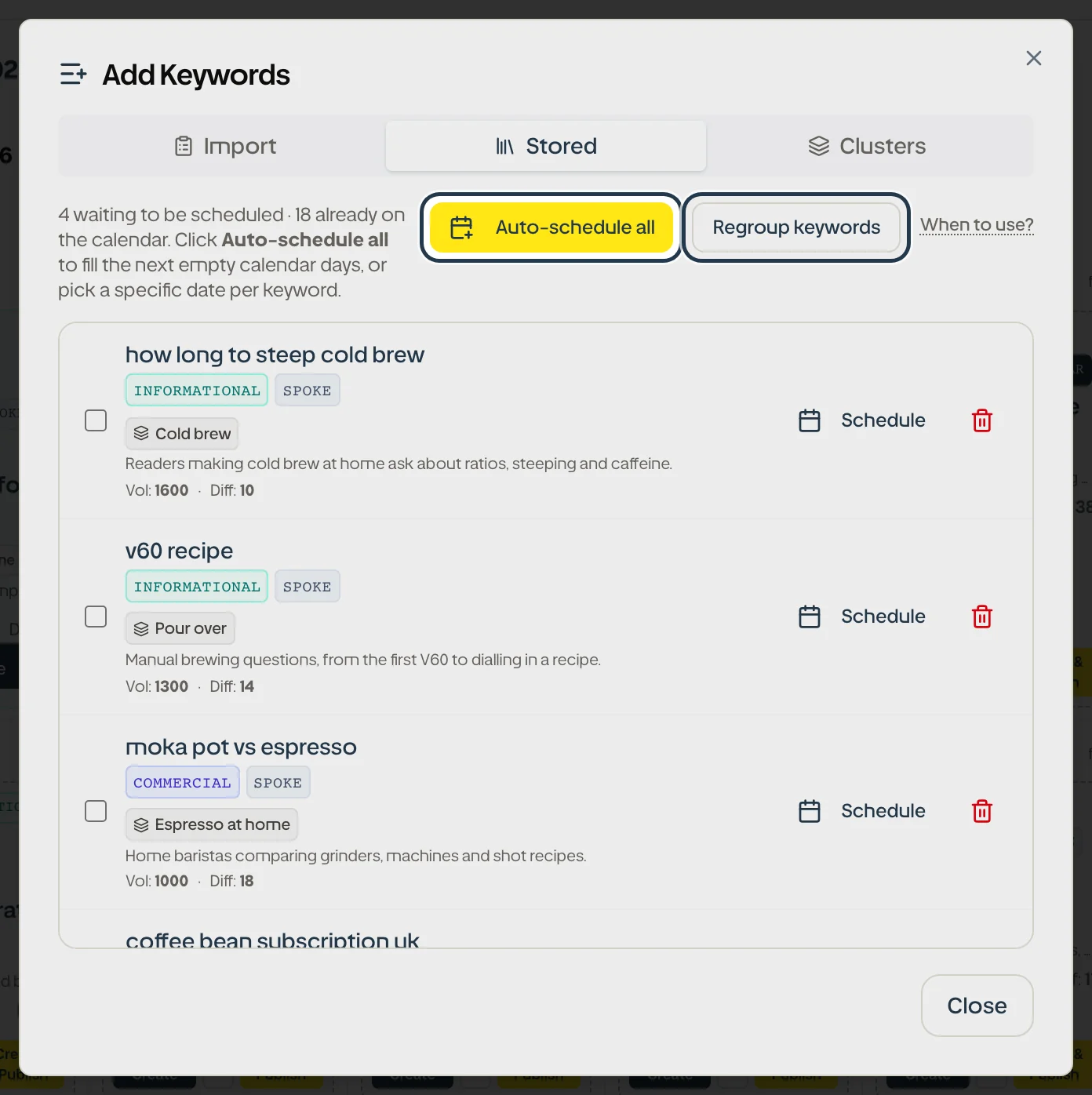
Imported keywords wait in your pool until they have a day. On the Stored tab:
- Click Auto-schedule all to fill the next empty days on the calendar.
- Or click Schedule beside a keyword to give it a date of its own.
- Remove a keyword from the pool with its bin button, or take one off the calendar again.
Keep keywords grouped
Click Regroup keywords on the Stored tab after a big import, when keywords say Not grouped yet, or when clusters look mixed up. It sorts every keyword in the list into clusters again. Keywords you placed in a cluster yourself stay where they are, and calendar days and written articles do not change.
Warning
You can regroup up to 10 times a day, and each import uses one of those.
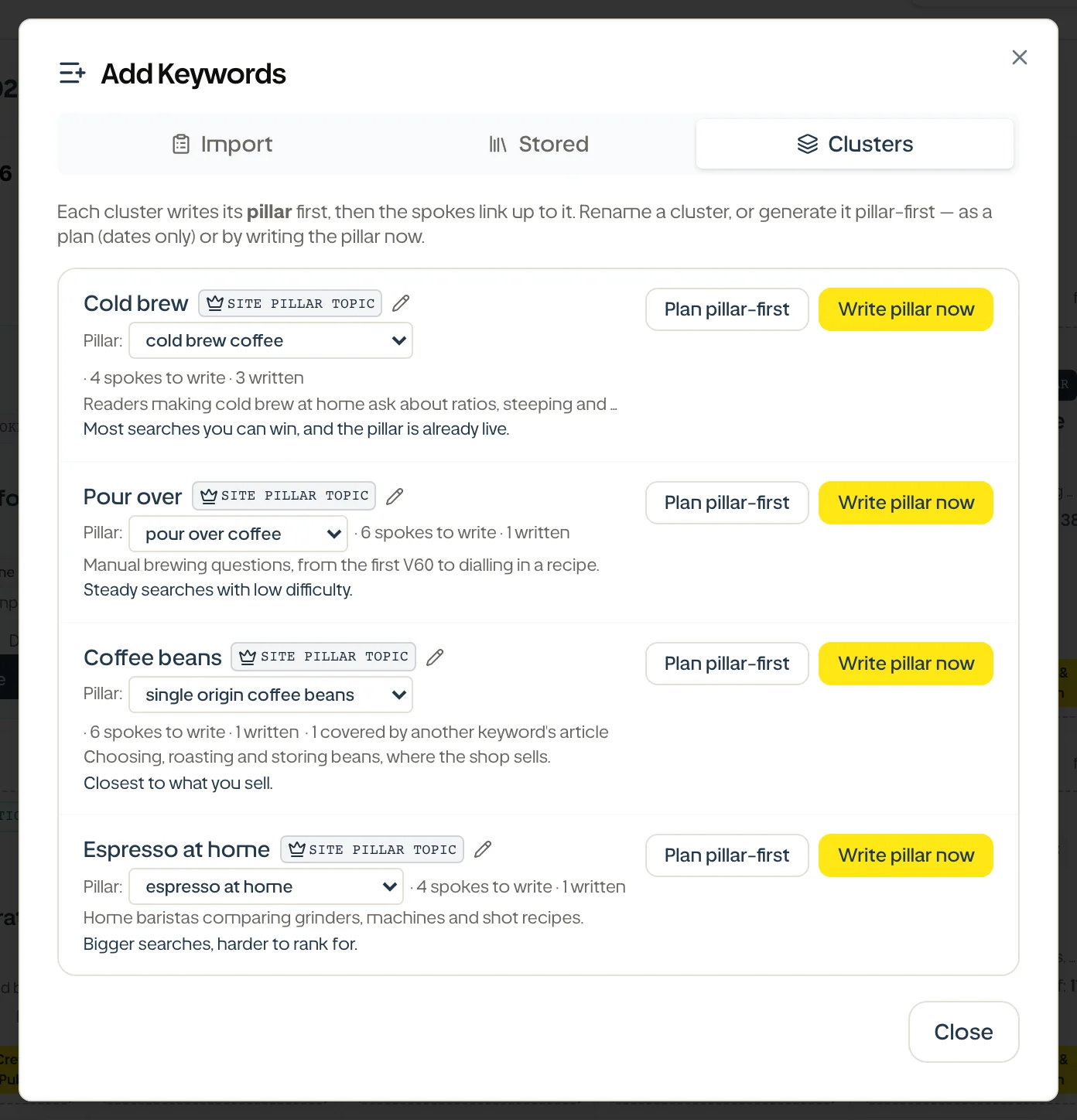
On the Clusters tab you can choose each cluster's pillar, the main article the others link to, and rename a cluster with its pencil button. For a cluster's pillar you can also:
- Click Plan pillar-first to put the pillar on the next empty day, with the cluster's other articles after it. Nothing is written yet.
- Click Write pillar now to write it now and schedule the others after it. This uses one article from this month.
Two keywords, one article
When two keywords ask for the same thing, Telliscope writes one article that ranks for both. The second keyword shows under Also covers on the Stored tab. Click Un-merge to give it an article of its own.
A keyword that an article you already have covers shows under Covered by articles you already have on the Stored tab, with the article that covers it. It is not written again. Click Un-merge there to give it an article of its own.
Long-term keywords
Some keywords matter to your business but are hard for your site to win today, because the sites already on page one for them are much stronger than yours. Telliscope doesn't drop them. They wait on the Stored tab under Long-term: build authority first, each with the reason, and they aren't written yet. They come from the keywords Telliscope finds when it plans for you, and from the suggestions in Generate Keywords, a day's generate and Build a group around this.
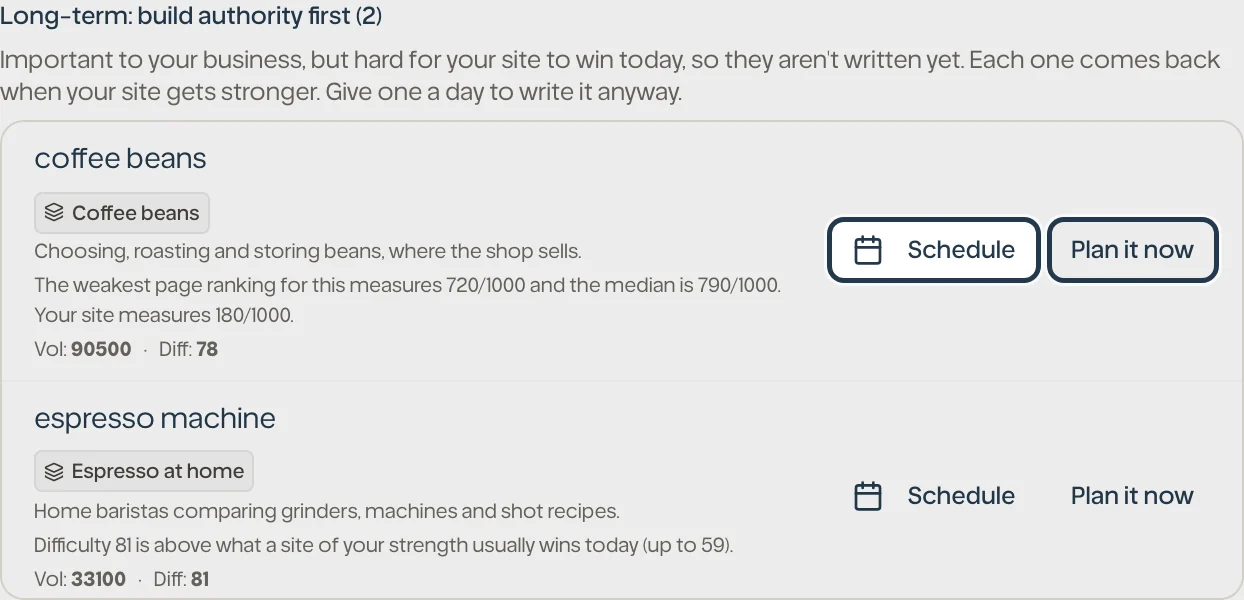
Each one comes back:
- When your site gets stronger. Your site's strength is measured about once a month. When a long-term keyword becomes one your site can win, it moves to the keywords waiting to be scheduled.
- When its topic group is published. Once enough of a topic group's articles are published on your site, its most important long-term keyword is planned next. When your plan writes one topic group at a time, this happens once the group is complete.
- When you choose it. Click Schedule to write it on a day you pick, or Plan it now to add it to the keywords waiting to be scheduled.
Note
Telliscope keeps up to 100 long-term keywords per site, most important first.
Find new keywords
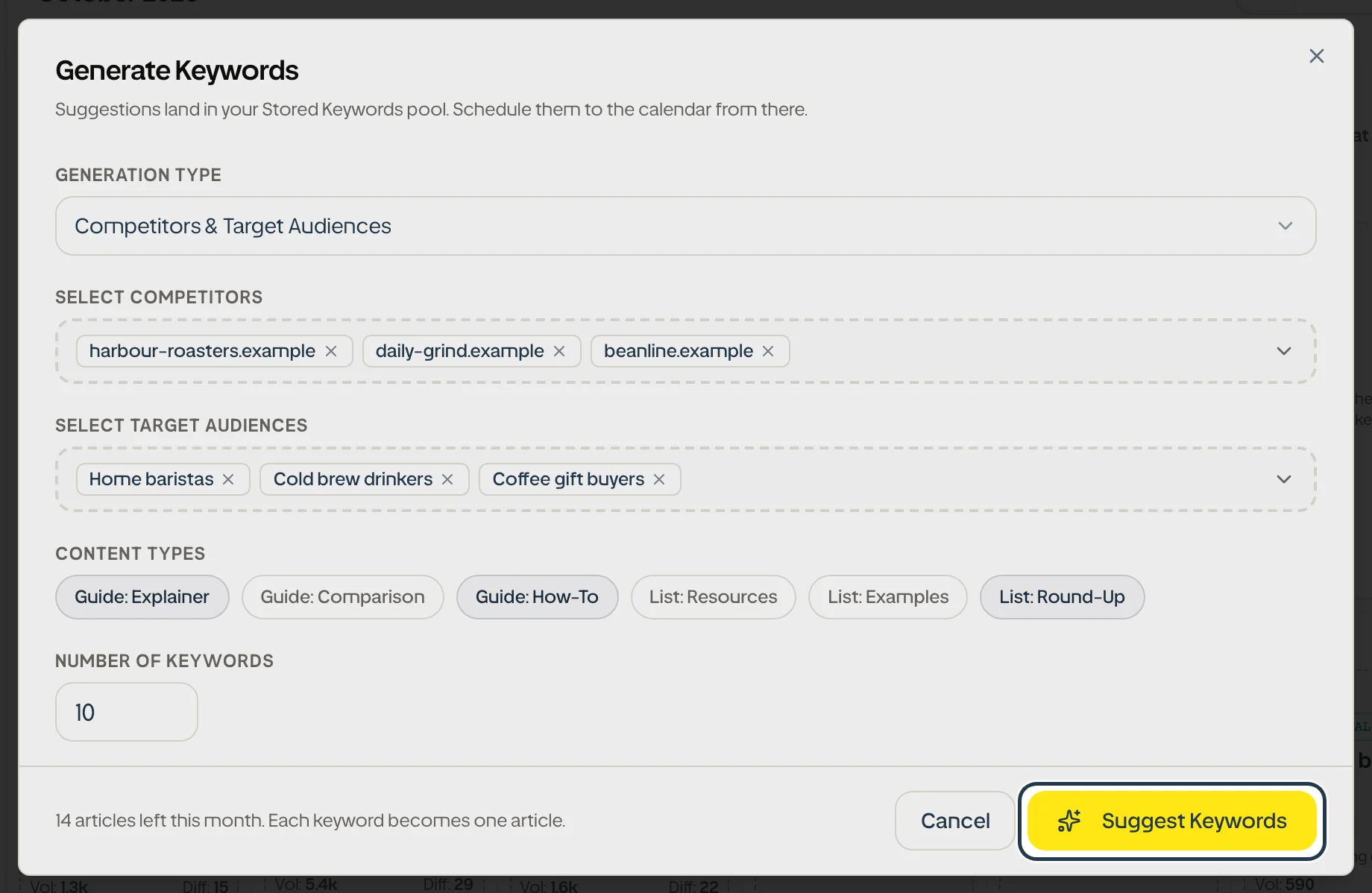
- Click Generate Keywords.
- Under Generation Type, choose Competitors & Target Audiences to start from your settings, or Topic-only (seed phrase) and type a Seed topic.
- Set the Number of Keywords and click Suggest Keywords.
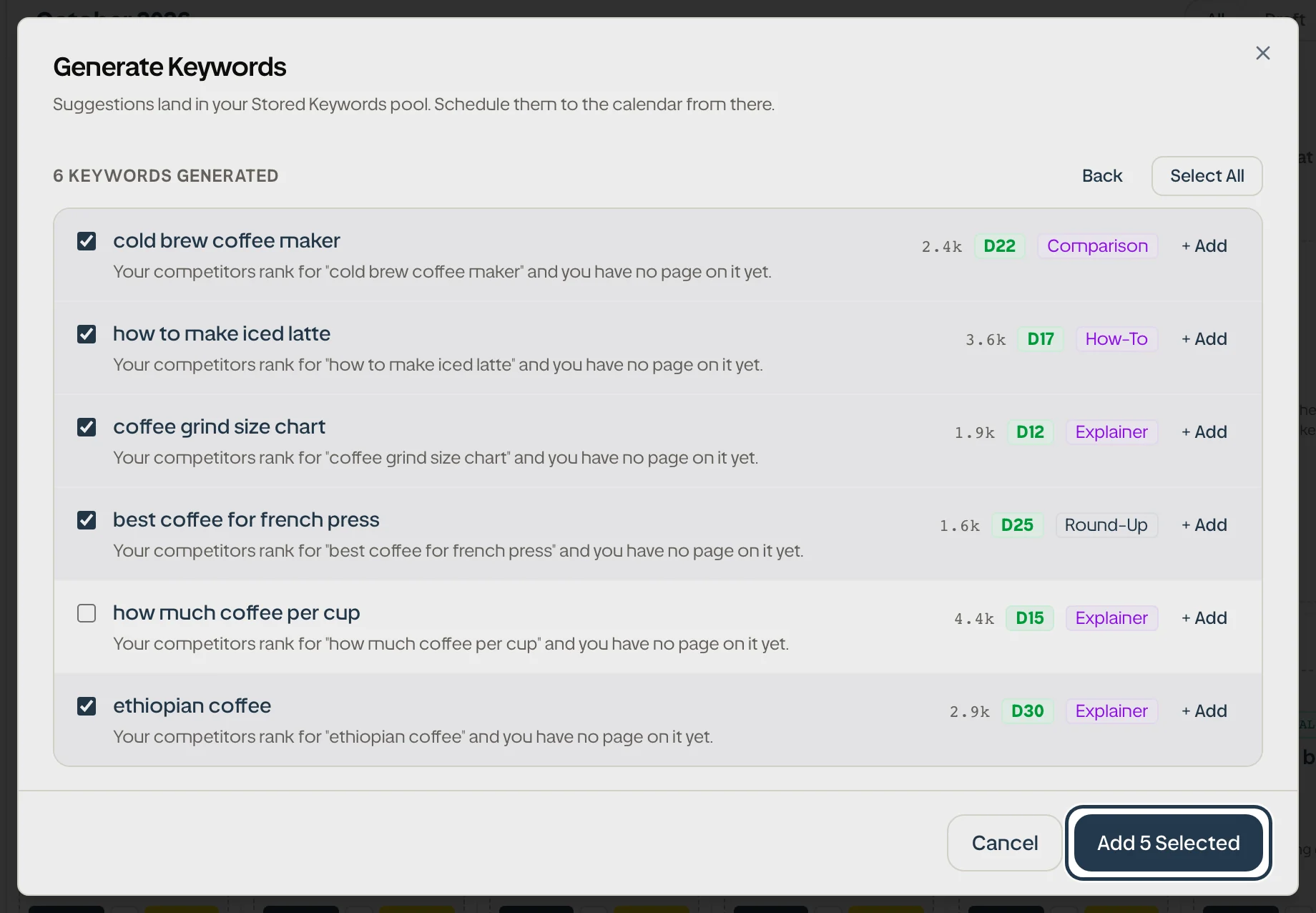
- Tick the ones you want and click Add 5 Selected, or however many you ticked.
Tip
Nothing is planned unless you tick it. Suggestions your site can't win yet are kept on the Stored tab under Long-term: build authority first, and the window says how many. Keywords that pages on your site already cover are listed apart, so you can refresh those pages instead of writing again.