Open Settings in the sidebar. This is what Telliscope knows about your business: it shapes which keywords are picked and what your articles say. Changes apply to articles written from then on.
Tip
Every setting has an i beside it. Point at it, or tap it, to see what the setting does.
Business
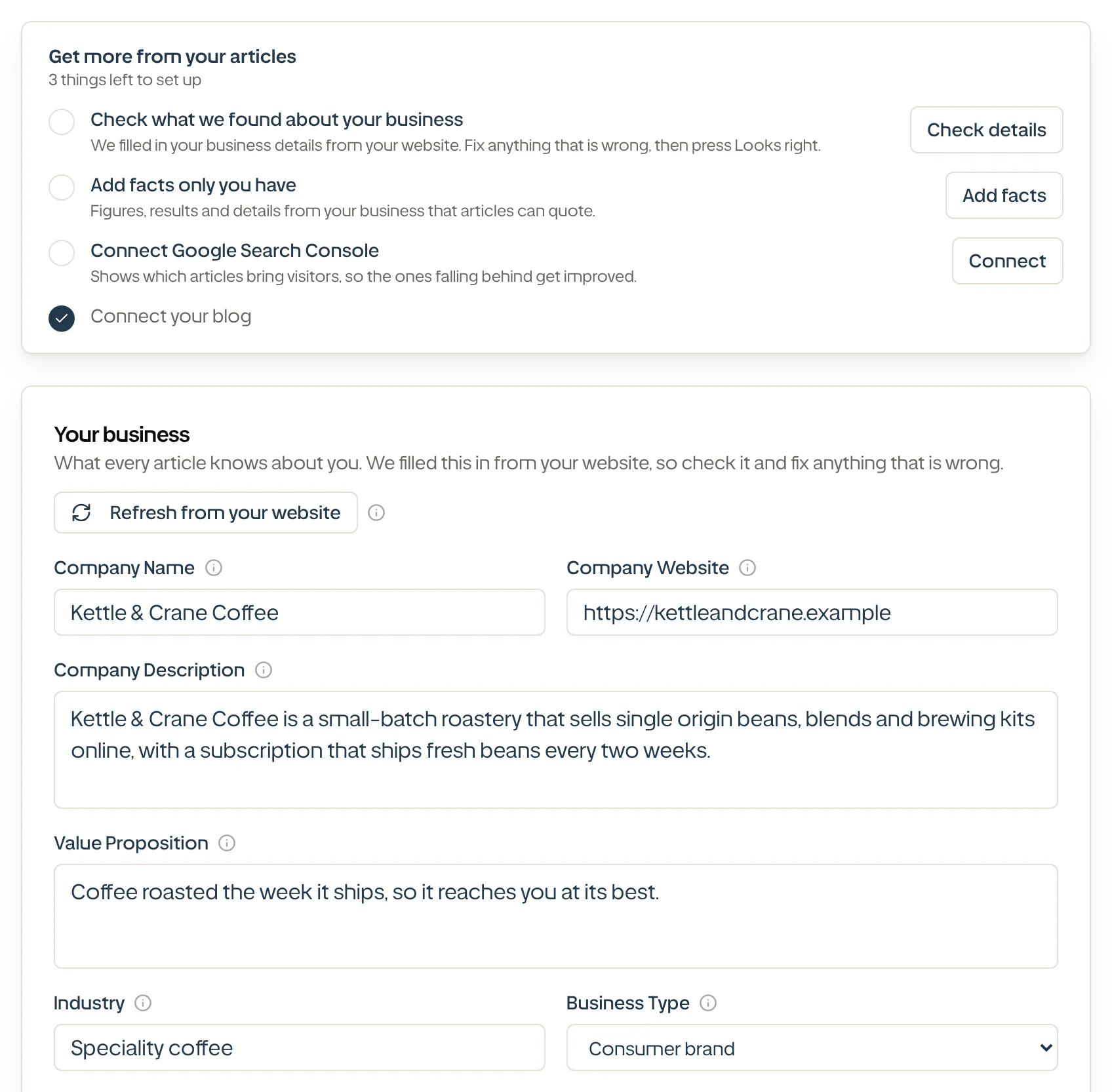
Get more from your articles, at the top, lists what is left to set up. Each item opens the place to do it, and the list goes away once the needed items are done. Connecting your blog is optional.
Your business holds what Telliscope found on your website when you signed up. Check it and fix anything that is wrong:
- Company Name, Company Website and Company Description say who you are and what you do.
- Value Proposition is the main reason customers choose you. Articles use it when they say what sets you apart, so keep it to what is true today.
- Industry and Business Type shape how articles are written: who they expect is reading, how deep they go and how they end.
- Country and Content Language set your market: the searches your keywords come from and the language your articles are written in. English articles use your country's spelling throughout, keywords included: British spelling for the UK, Ireland, India, Australia, New Zealand and Singapore, Canadian spelling for Canada. To use another spelling, say so in Instructions for every article under Content Settings.
When everything is right, click Looks right. That ticks off Check what we found about your business in the list above.
Refresh from your website
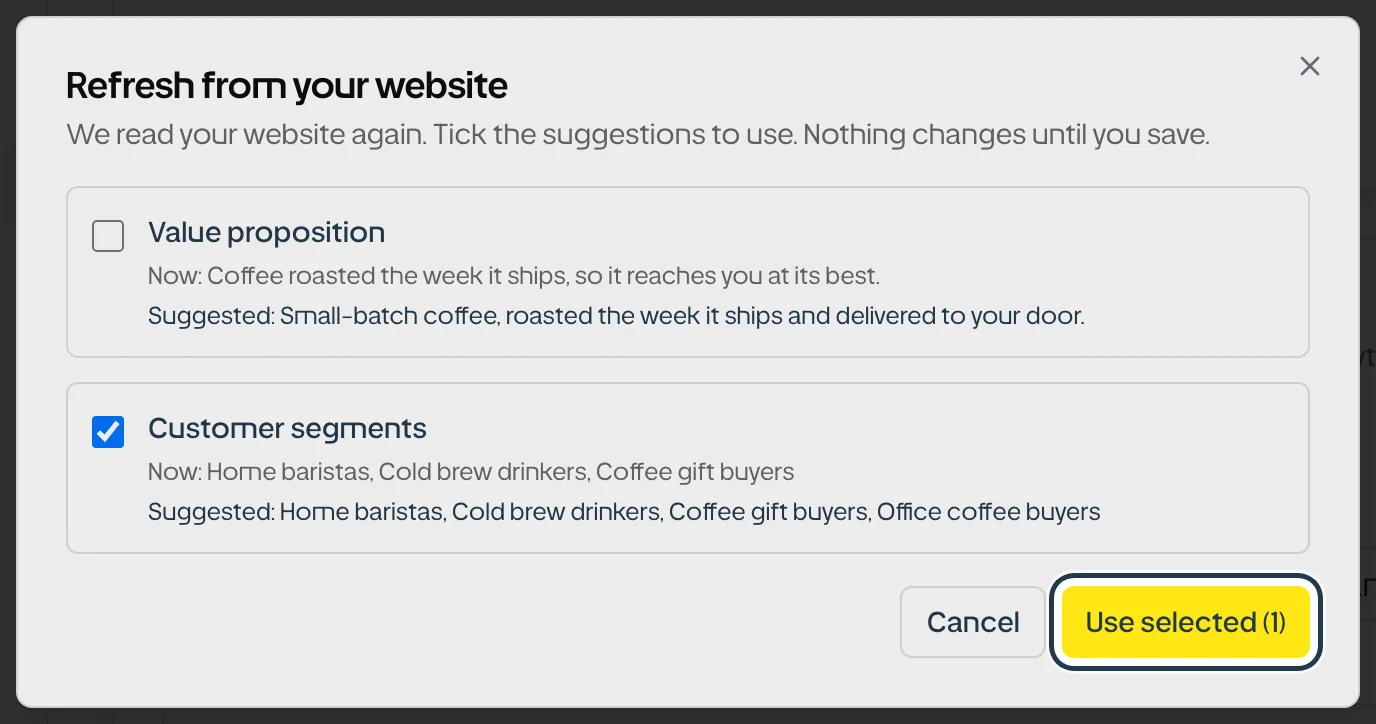
Changed your website? Click Refresh from your website. Telliscope reads it again and lists each field where it suggests something different, beside what you have now. Tick the suggestions to use, click Use selected, then save.
Note
Nothing changes until you choose. A field you already filled in starts unticked.
Products, competitors and topics
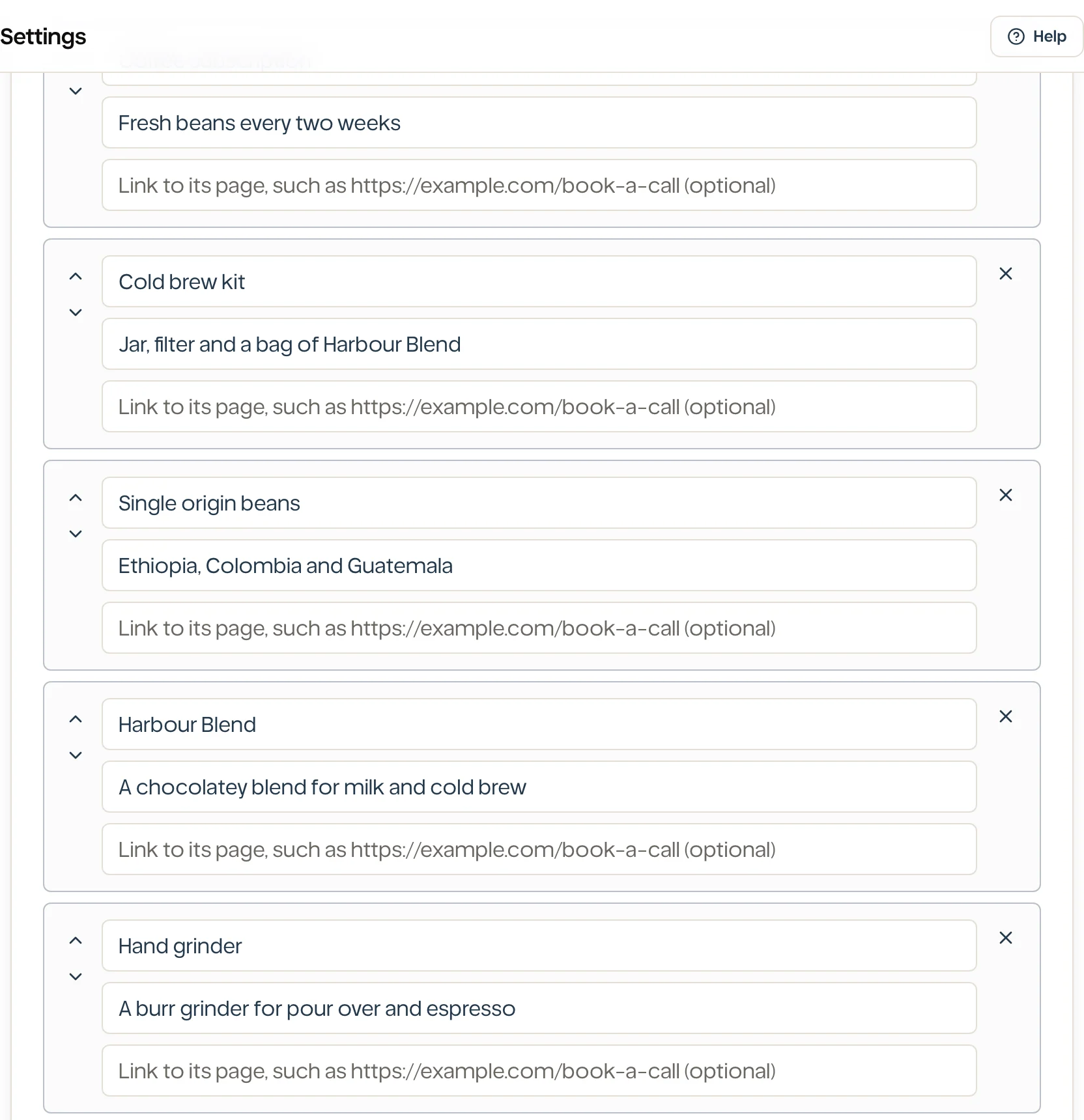
- Products and Services lists what you sell. Click Add product for anything missing, give it a name and a line about what it does, then click Save Products. A row without a name isn't saved. Add a product's link, such as its booking or sign-up page, and a call to action in your new articles that names the product links there. A link must be the full address, starting with https://.
- Competitors lists up to 7 sites that compete with you for the same searches. Telliscope uses them to find keywords you can win. Articles do not link to competitors or use their pages as sources, except in articles that compare or rank products, tools or businesses, where readers expect them. A list of tips or things to check is not one of those.
- Topics to Cover or Avoid is an optional standing rule for which keywords to pick, not how to write them. For example: "We only serve UK clients. Skip anything US-specific."
Tip
Articles mention only the top 10 products. Use the arrows to move the ones that earn you the most to the top.
How your articles sound, their tone, voice and instructions, is set in Content Settings.
Customers
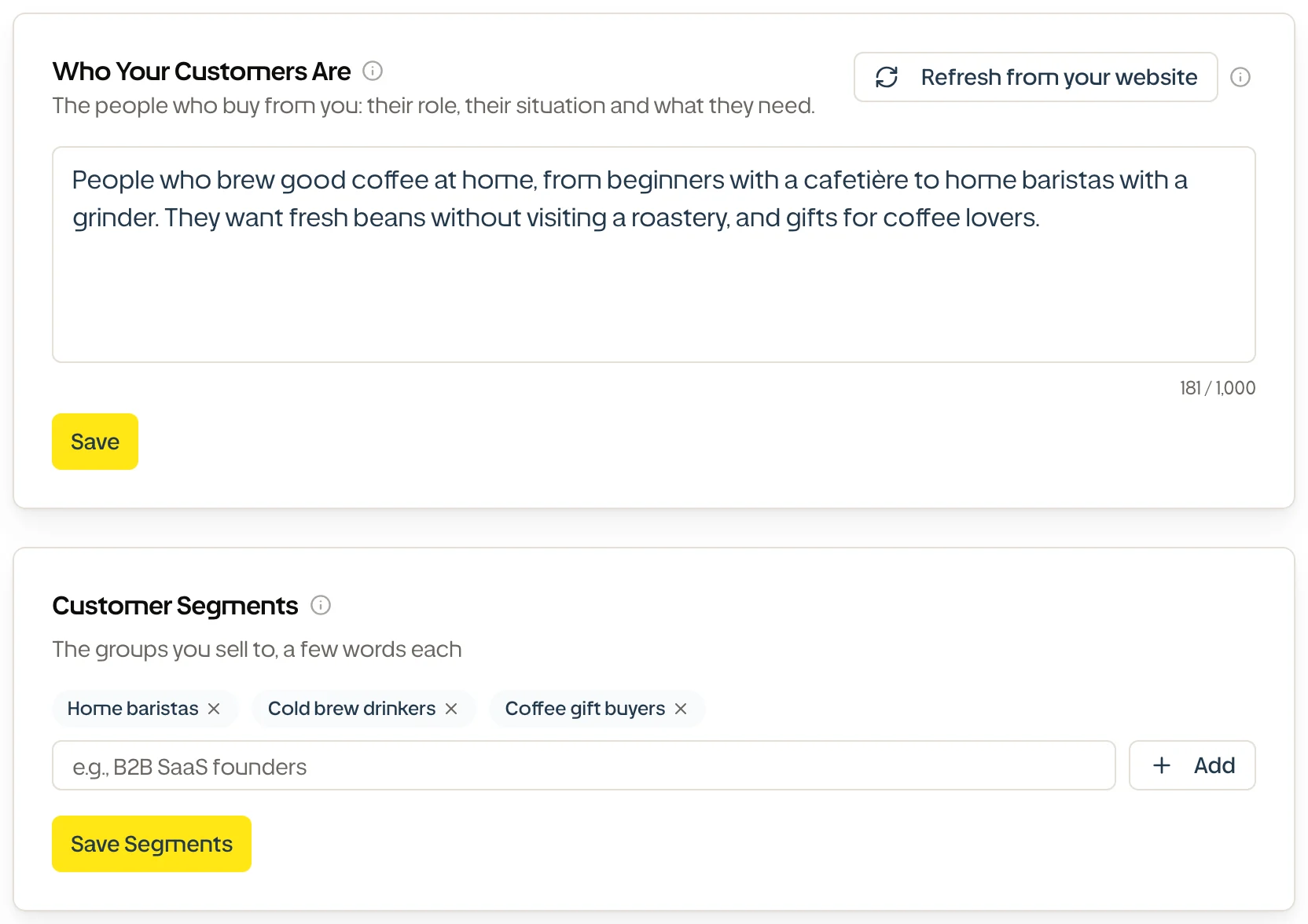
- Who Your Customers Are describes the people who buy from you: their role, their situation and what they need. Every article is written for them. You have up to 1,000 characters.
- Customer Segments lists the groups you sell to, a few words each. Articles speak to these readers, and new keyword ideas come from what they search for.
Knowledge
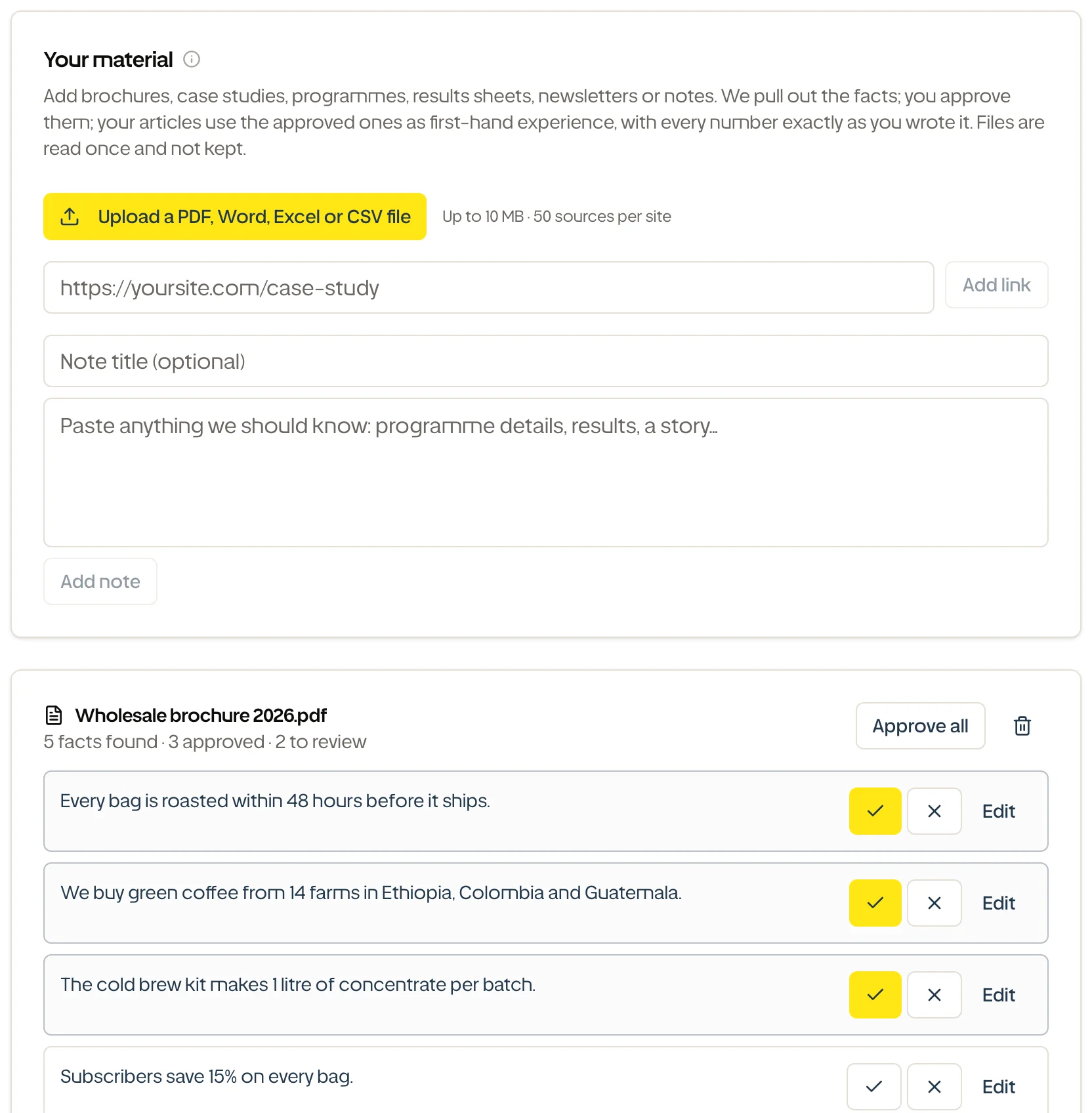
Under Your material, add brochures, case studies, programmes, results sheets, newsletters or notes. Telliscope pulls out the facts, and you approve the ones to use. Articles then use the approved facts as first-hand experience, with every number exactly as you wrote it. Files are read once and not kept. How many sources you can add depends on your plan.
Note
Only approved facts are used. A fact still waiting for review is left out of your articles.
Facts Typed by Hand, below it, is for facts and figures only you have, such as results or awards, that articles may quote.
Google Search Console
Connect Search Console to see how your articles rank and to let Telliscope propose improvements to the ones that slip. See Connect Google Search Console. If the tab says Search Console is coming soon, it is not available on your account yet.
Account
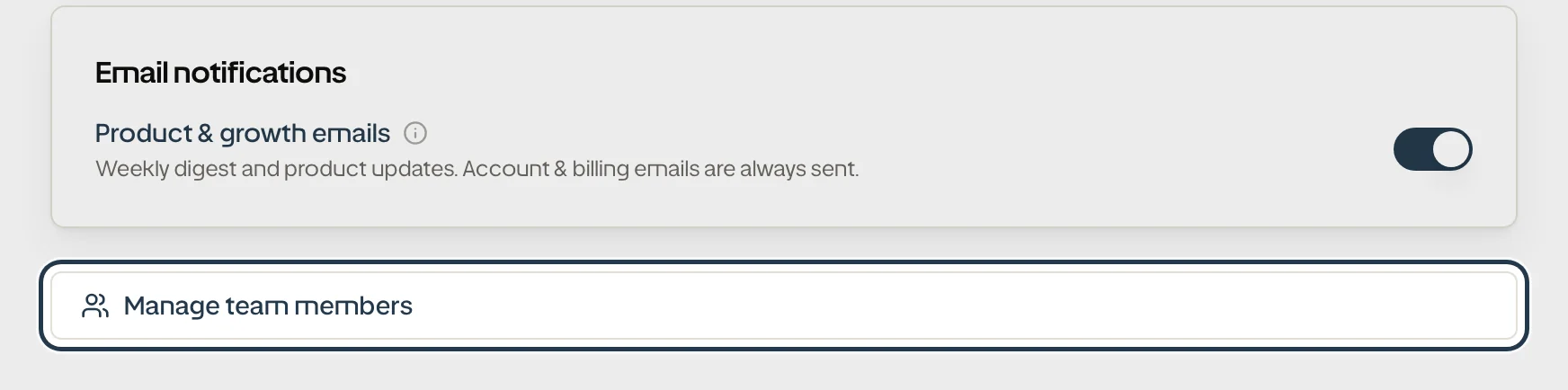
Your Details holds your name. Your email address cannot be changed here. Account also shows your plan, lets you turn product and growth emails on or off, and has Manage team members to invite colleagues.