
The Content Planner is where your articles are planned. Open it from Content > Planner in the sidebar.
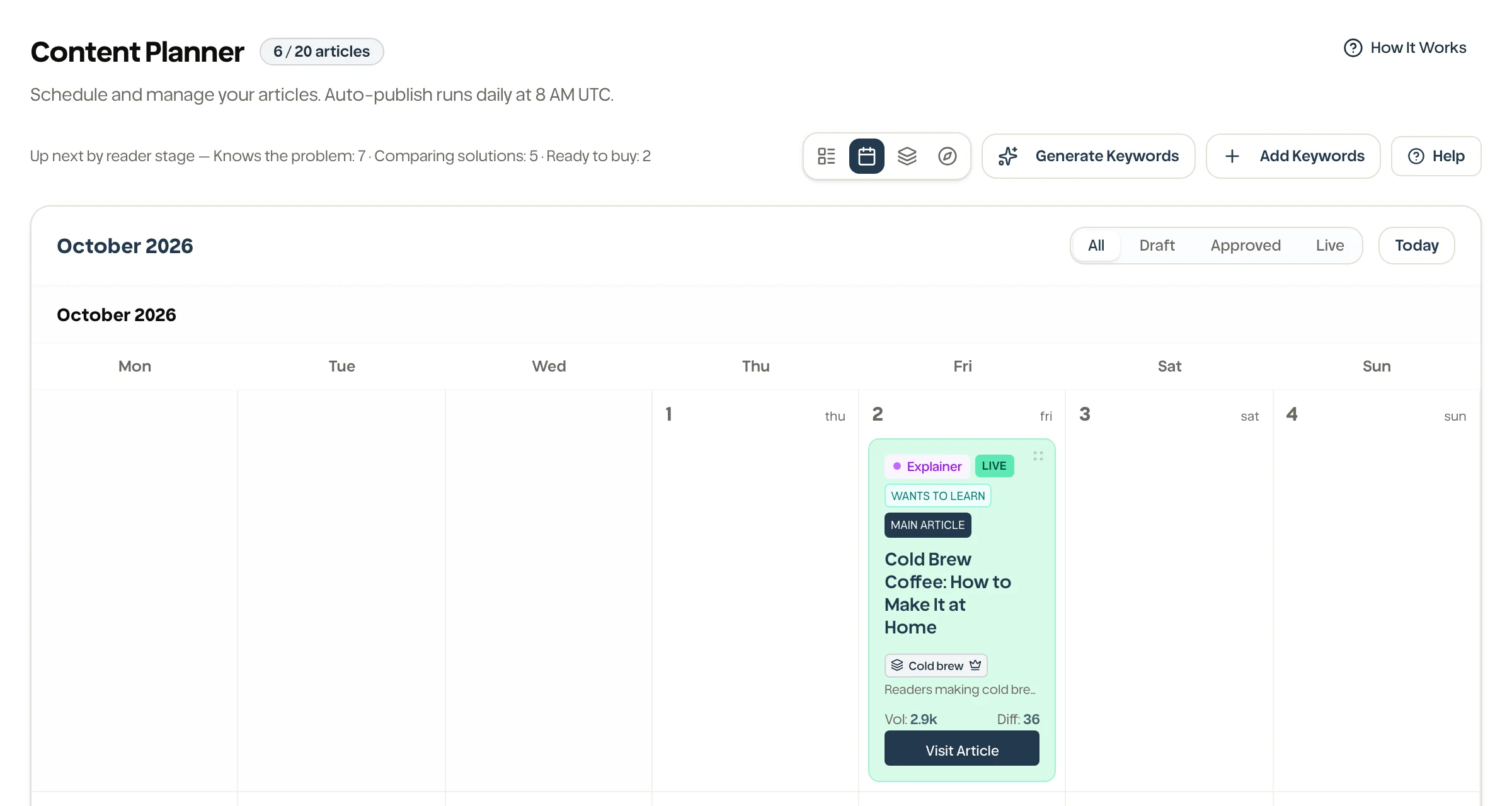
The calendar
Each day shows what is planned or written for it.
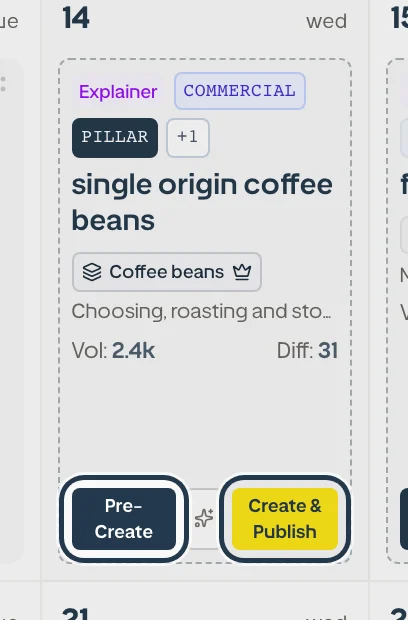
- A keyword card is an article still to be written. It shows the keyword, the kind of article and the topic cluster it belongs to. Vol is how many people search for the keyword each month, and Diff is how hard it is to rank for. Drag it to another day to move it.
- An article card is an article already written. Click it to open it, or drag it to another day to reschedule it.
- A keyword card that reads Writing… is your first article, written right after setup. The article takes its place within a few minutes. Until then, the card can't be dragged, it has no Pre-Create or Create & Publish, and its details have no Unschedule or Delete. In its details you can still change its type, and use Move to and Make pillar. A card with nearly the same keyword waits too, and gets its buttons back once your first article is ready.
A keyword moves to today or a later day within the plan. The Planner's today is the date in UTC, so for a few hours a day it can differ from yours. Dropped on a past day, a keyword goes back, and a message says why. To move a keyword without dragging, click Reschedule beside it on the Stored tab of Add Keywords.
The counter at the top, for example 12 / 30 articles, shows how many articles have been written in this month of your plan, out of your plan's total.
The calendar opens on this month, every week of it, and plans up to 60 days ahead. To look back, click Show and the month's name above the first month: it adds the month before, as far back as your first article. Past days show their articles and take no new keywords.
Write an article now
On a keyword card:
- Pre-Create writes the article as a draft for you to review. Nothing is published.
- Create & Publish writes the article and approves it. If Auto-publish articles is on in Content Settings, it goes to your blog within a few minutes. If not, open the article and click Approve & Publish.
Note
Both buttons count toward your plan's articles for the month. Without a connected blog, an article from Create & Publish waits until you connect one in Integrations.
Steer one article
To give one article instructions of its own, such as an angle to take, a statistic to use or a structure to follow:
- On its keyword card, click the sparkle button between Pre-Create and Create & Publish.
- Under Customize this article, type your instructions.
- Click Pre-Create. The article is written as a draft, following your instructions.
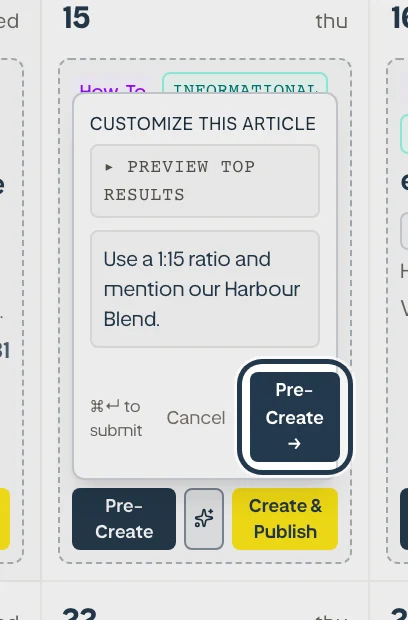
An article written with instructions shows a small sparkle in the corner of its card.
See why a keyword was chosen
Click a keyword on its card to open its details:
- Why this keyword and Why this cluster.
- Volume, Difficulty, Intent and Reader stage, which tells you whether the reader is still learning about the problem or ready to choose a product.
- Also targets: similar searches the same article answers, when there are some.
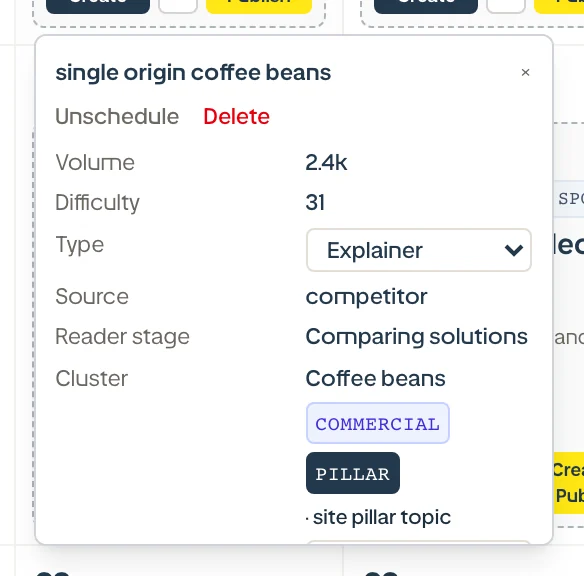
From the same place you can:
- Unschedule the keyword: it goes back to your keyword pool and no article is written for that day.
- Delete the keyword from your pool.
- Use Move to to put the keyword in another topic cluster.
- Use Make pillar to make it the cluster's main article. A pillar is written first, and the cluster's other articles link to it.
Lists of products or businesses
A keyword such as "best project management tools" gets an article that compares several businesses. Your business can be in the list, but only as the last entry, with a line saying it is yours. It is never ranked first or picked as the best, and the same goes for everything it offers, free tools included. Lists that rank their own publisher first are trusted less by search engines and AI answers.
Telliscope plans about one list keyword in every ten, so your plan isn't mostly lists. Keywords you add yourself aren't counted.
Fill an empty day
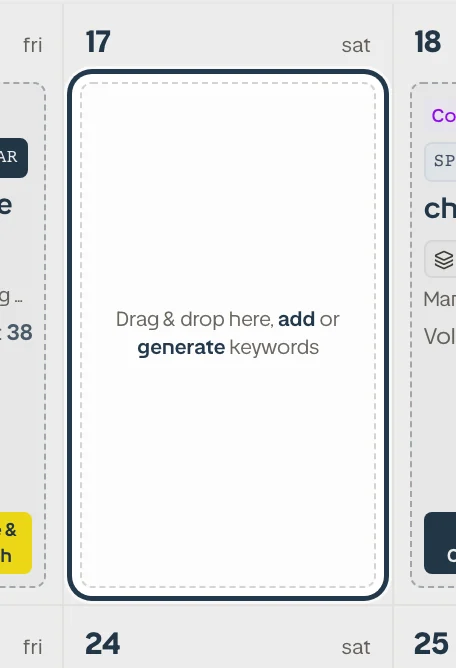
An empty day reads Drag & drop here, add or generate keywords. Click generate, and Telliscope finds a keyword for that day and puts it on the calendar. A keyword it finds that your site can't win yet goes to the Stored tab under Long-term: build authority first instead, and the planner says so. Click add to add keywords of your own. See Add your own keywords.
Other views
The buttons at the top right switch between views.

- List view shows every article in one list. The same list opens from Content > Past Articles.
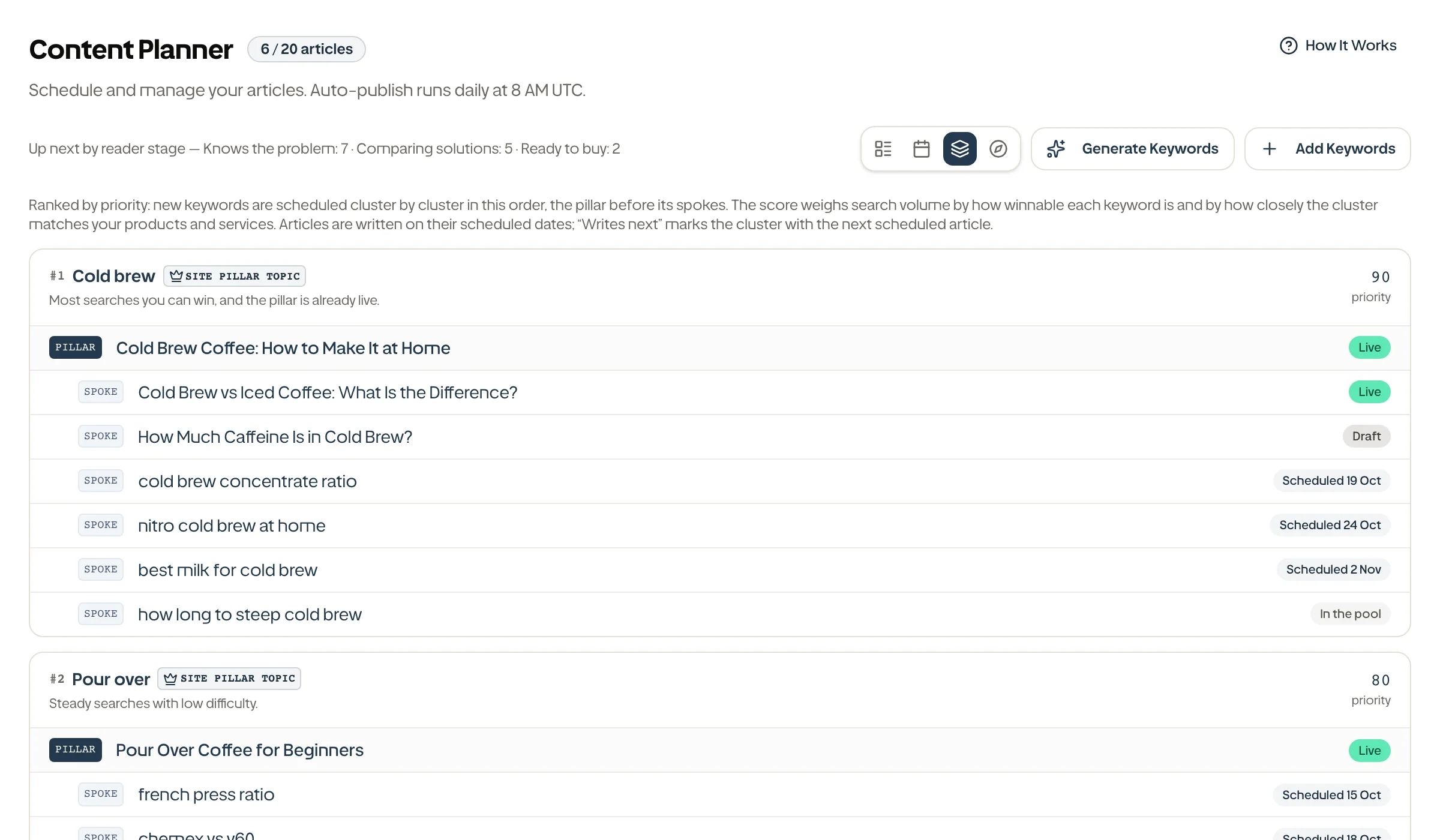
- Cluster view groups your keywords by topic, with each cluster's pillar and the order clusters are written in.
- Themes lists the subjects your readers search about. See Themes below.
Themes
Themes are the subjects your readers search about, in their own words: their situations and problems, not your product. A fitness coach's themes might be "Habits Over Willpower" or "Stress, Food and Your Body".
For each theme you keep, Telliscope looks up what people in your country search about it, and picks keywords from those searches alongside the keywords your competitors rank for. That brings in readers who don't search for what you sell yet, but do search for the problems you solve.
Only keywords searched by the people you sell to are planned. A search made mostly by job seekers, students or people after something you don't offer stays off your plan, and so does one where the results are tools, listings or dictionary pages an article can't compete with. Keywords you add yourself aren't judged this way.
Open them with the compass button at the top right of the planner, next to the list and calendar buttons.
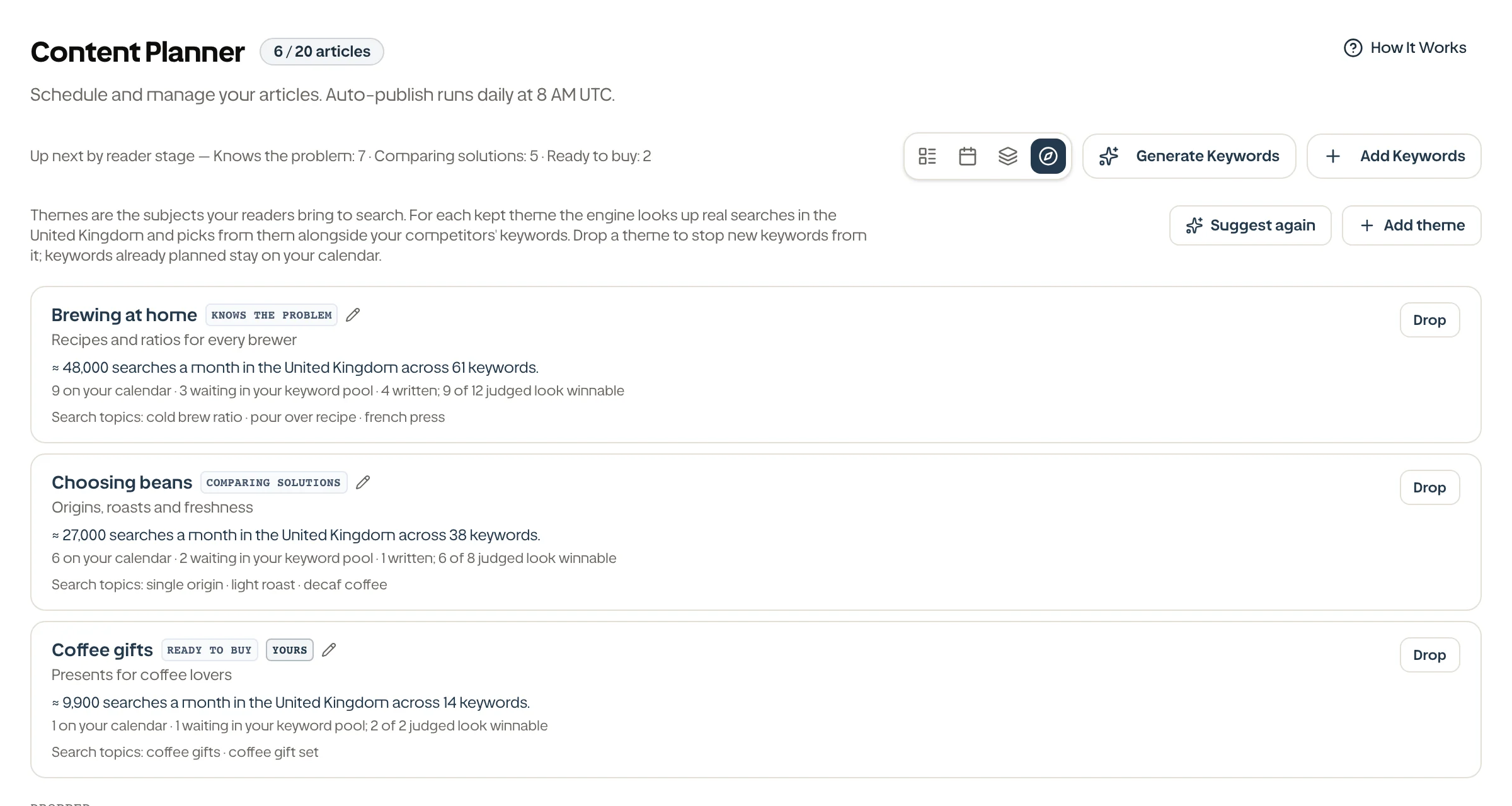
Each theme shows how many searches a month its keywords get in your country, and how many of its keywords are on your calendar or already written.
- Drop a theme to stop new keywords from it. Keywords already on your calendar stay. Keep brings a dropped theme back.
- Click the pencil beside a theme to rename it.
- Add theme adds a subject of your own: a few words, and the angle to take if you like.
- Suggest again proposes a fresh set from your business details. Themes you added or renamed stay, and dropped ones don't come back.
Note
A site keeps up to 8 themes, the most one round of keyword finding can draw from. When 8 are kept, drop one before you add your own.