
This connection lets Telliscope publish articles to your Ghost site.
What you need
- Access to Ghost Admin for your site.
- A custom integration's Admin API key and API URL.
Note
On a site hosted by Ghost, custom integrations and the Admin API come with the Publisher plan and above. The Starter plan has neither, so it cannot connect. A Ghost site you host yourself has both.
In Ghost
- In Ghost Admin, open Settings and go to Integrations.
- Click Add custom integration and give it a name.
- The integration's page shows an Admin API key and an API URL. Copy both.
The API URL can differ from your site's own address. A site hosted by Ghost always has an address ending in .ghost.io for this, even when visitors see your own domain.
Ghost explains these keys in its Admin API docs.
In Telliscope
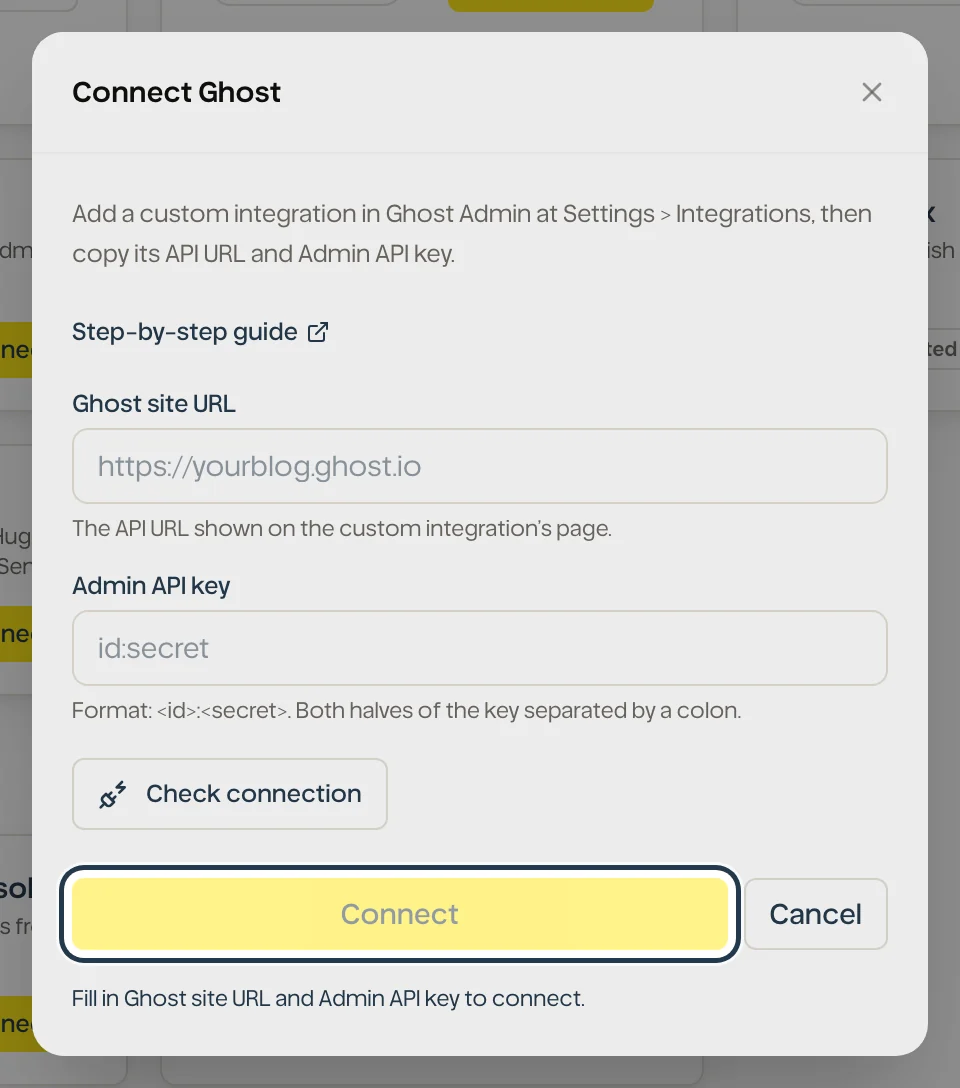
- Open Integrations and click Connect on the Ghost card.
- Fill in the fields:
- Ghost site URL: the API URL from the integration's page, such as https://yourblog.ghost.io.
- Admin API key: the whole key. It has two parts separated by a colon.
- Click Check connection. It reads your posts with the key without changing anything, then says whether the key works, or what to fix.
- Click Connect. It stays greyed out until both boxes are filled in, and the line under it names any box still empty.
Tip
Copy the whole Admin API key in one go, colon included. A key pasted in part is refused.
To change the details later, click Configure on the card, change what you need and click Update credentials. Leave the Admin API key empty to keep the one already saved: its box reads Saved. Leave blank to keep it. Once connected, the Ghost card has its own Check connection button.
What gets published
An article goes out when you click Approve & Publish on it, or on its scheduled day when Auto-publish articles is on in Content Settings. The post is published live with its title, body, URL slug and the cover image as its feature image. The meta description becomes the excerpt. The title, meta description and cover image also fill the post's meta data and social sharing fields, and the schema markup goes into the post's code injection header.
Republish sends your latest edits to the same post. Telliscope then opens the live post to check it shows them. If it still shows the older copy after a second send, wait a few minutes or clear your site's cache, then reload the post. Deleting the article in Telliscope also deletes the post from Ghost.
What Check connection tells you
- "The Admin API key is incomplete": copy the whole key again, colon included.
- "Ghost refused the Admin API key": copy it again from the custom integration's page, or add a new custom integration and use its key.
- "No Ghost Admin API answered at this address": enter the API URL shown on the integration's page.
- "Your Ghost site URL redirects": enter the API URL shown on the integration's page.
If it doesn't work
Open the article and expand Advanced > Publish history to see the error.
- "Ghost Admin API key must be in format": only part of the key was pasted. Copy the whole key, colon included, and enter both fields again.
- "Ghost API key secret is not valid hex": the part after the colon is incomplete. Copy the key again.
- "Ghost auth failed": the key was refused. Copy it again from your custom integration, or create a new integration and use its key.
- "Unexpected Ghost response" with a code such as 301: your Ghost site URL redirects. Enter the integration's API URL.
After fixing an error, click Approve & Publish on the article again.