
This connection lets Telliscope publish articles to one blog in your Shopify store.
What you need
- Permission to develop apps for your store, to create an app in Shopify's Dev Dashboard.
- Your store's address: yourstore.myshopify.com, or the admin address admin.shopify.com/store/yourstore.
- The ID of the blog your articles go into. Check connection lists your blogs and their IDs.
Since January 2026, Shopify no longer lets stores create custom apps in the admin, so apps are made in the Dev Dashboard. If you set up an older app before then, it keeps working.
In Shopify
- Open the Dev Dashboard, go to Apps and click Create app. Choose Start from Dev Dashboard, name the app and click Create.
- On the app's Versions page, add the scopes read_content and write_content, then click Release.
- Click Install app and install it on your store.
- Open App settings and copy the Client ID and the Client secret.
The app and the store must belong to the same Shopify organization. Shopify explains these steps in its guide to Dev Dashboard apps.
In Telliscope
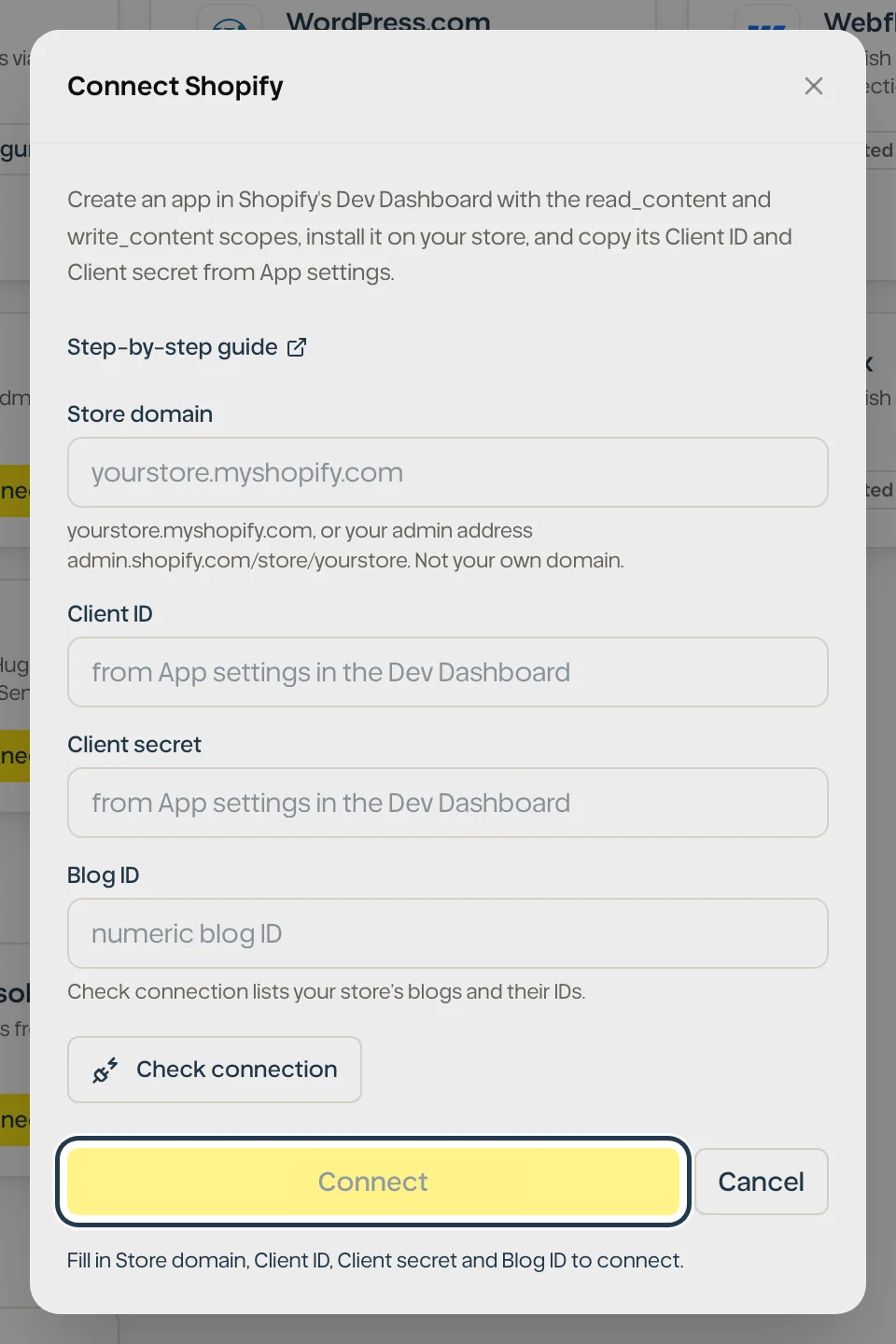
- Open Integrations and click Connect on the Shopify card.
- Fill in the fields:
- Store domain: yourstore.myshopify.com, or the admin address. Not your own domain.
- Client ID and Client secret: from the app's settings.
- Blog ID: the number of your blog. Leave it empty for now if you don't know it.
- Click Check connection. It reads your store with the app without changing anything, checks that the app may publish blog posts, and finds the blog. With Blog ID empty or wrong, it lists your store's blogs and their IDs: copy the one you want into Blog ID and check again.
- Click Connect. It stays greyed out until all four boxes are filled in, Blog ID included, and the line under it names any box still empty.
Warning
Enter your store's myshopify.com address in Store domain, never your own domain. Publishing fails with your own domain.
To change the details later, click Configure on the card, change what you need and click Update credentials. Leave the Client secret empty to keep the one already saved: its box reads Saved. Leave blank to keep it. With an older app from before 2026 saved, Client ID and Client secret can stay empty. Once connected, the Shopify card has its own Check connection button.
What gets published
An article goes out when you click Approve & Publish on it, or on its scheduled day when Auto-publish articles is on in Content Settings. It is published live on your blog with its title, body, URL handle and cover image, and the meta description as its summary.
The title, meta description and schema markup are also saved on the article as SEO metafields. Whether your pages show them depends on your theme.
Republish sends your latest edits to the same article. Deleting the article in Telliscope also deletes it from Shopify.
What Check connection tells you
- "Shopify refused the app's Client ID or secret": check both, and that the app is installed on your store.
- "Shopify refused the app: it was made in a different Shopify organization": create the app in the Dev Dashboard of the organization that owns the store.
- "The app can't publish blog posts": add the read_content and write_content scopes on the app's Versions page, click Release, then approve the update on your store.
- "Your store has no blog with ID": copy one of the IDs the message lists into Blog ID.
- "Enter your store's myshopify.com address": Store domain holds your own domain or something else.
If it doesn't work
Open the article and expand Advanced > Publish history to see the error.
- Publishing fails after you entered your own domain: enter yourstore.myshopify.com in Store domain.
- "Shopify refused the app's Client ID or secret": check both, and that the app is installed on your store.
- "Shopify refused the app: it was made in a different Shopify organization": create the app from the Dev Dashboard of the organization that owns the store.
- "Shopify auth failed": the app is missing the read_content or write_content scope. Add them, release a new version, and approve it on your store.
- "Shopify resource not found": the Blog ID is wrong. Click Check connection on the Shopify card to list your blogs.
- "Missing credentials for shopify": a field is empty. Fill them in again.
After fixing an error, click Approve & Publish on the article again.