Telliscope finds what your customers search for, plans your articles, writes them in your voice and publishes them to your site.
1. Create your account
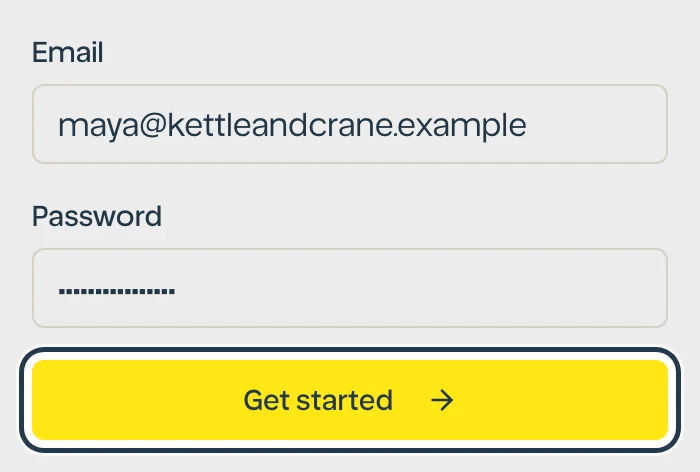
On the sign-up page, enter your email and a password of at least 8 characters, then click Get started.
2. Tell Telliscope about your business
A short setup takes you through six steps. Your answers are saved as you go, so you can stop and finish later, on any device.
| Step | What you do |
|---|---|
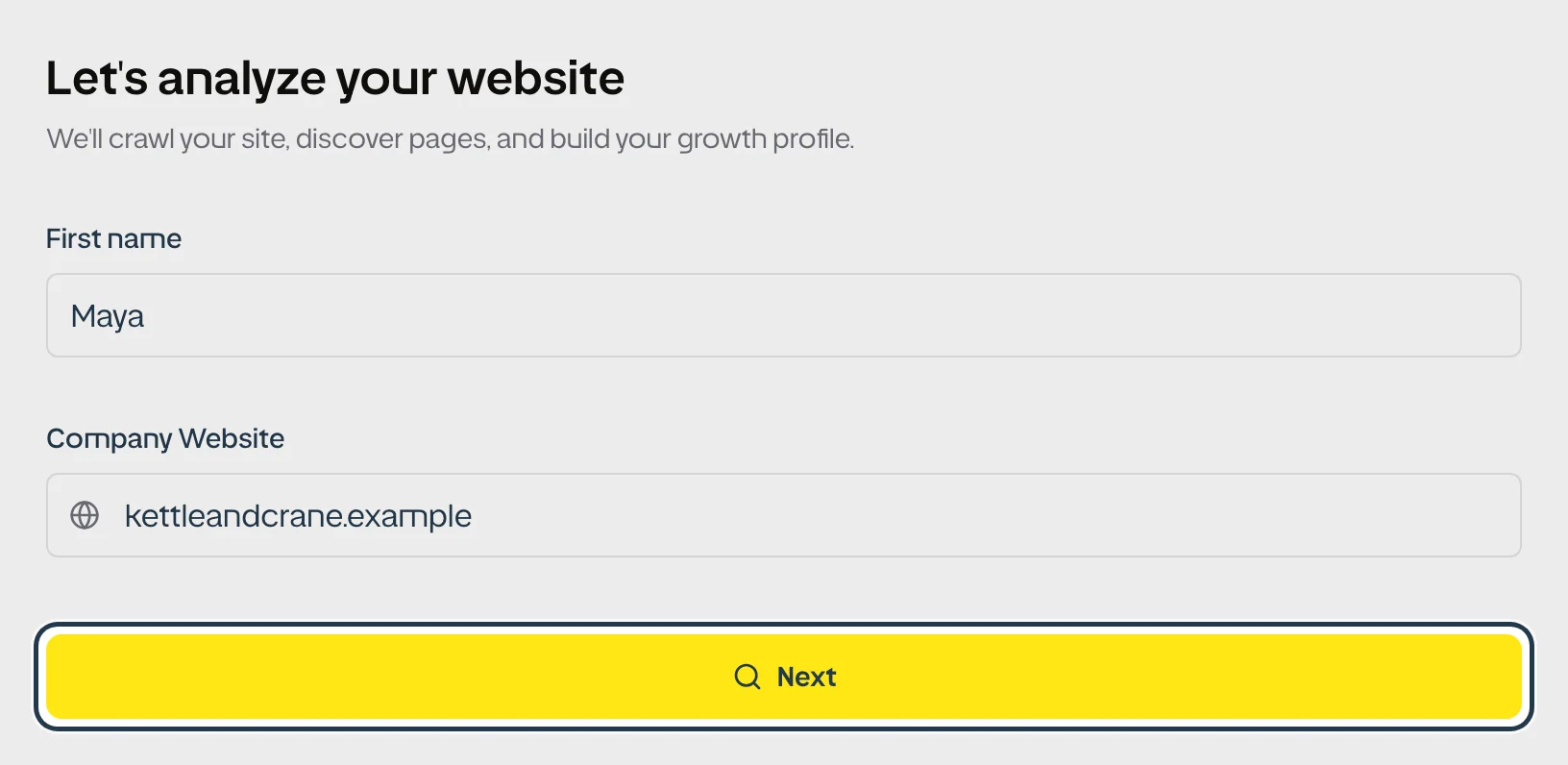
| Website | Enter your first name and your company's website. Telliscope reads your site and fills in the next steps for you. |
| Business | Check your company name, language, country and what your company does. |
| Audience & Competitors | Check who your customers are and which competitors you want to outrank. |
| Blog | Check your sitemap and blog addresses, and add sample articles if you have them. |
| Articles | Choose the writing tone, brand colour, image style, and features such as a table of contents. Under Include Infographics, you see how many charts a month each plan draws. |
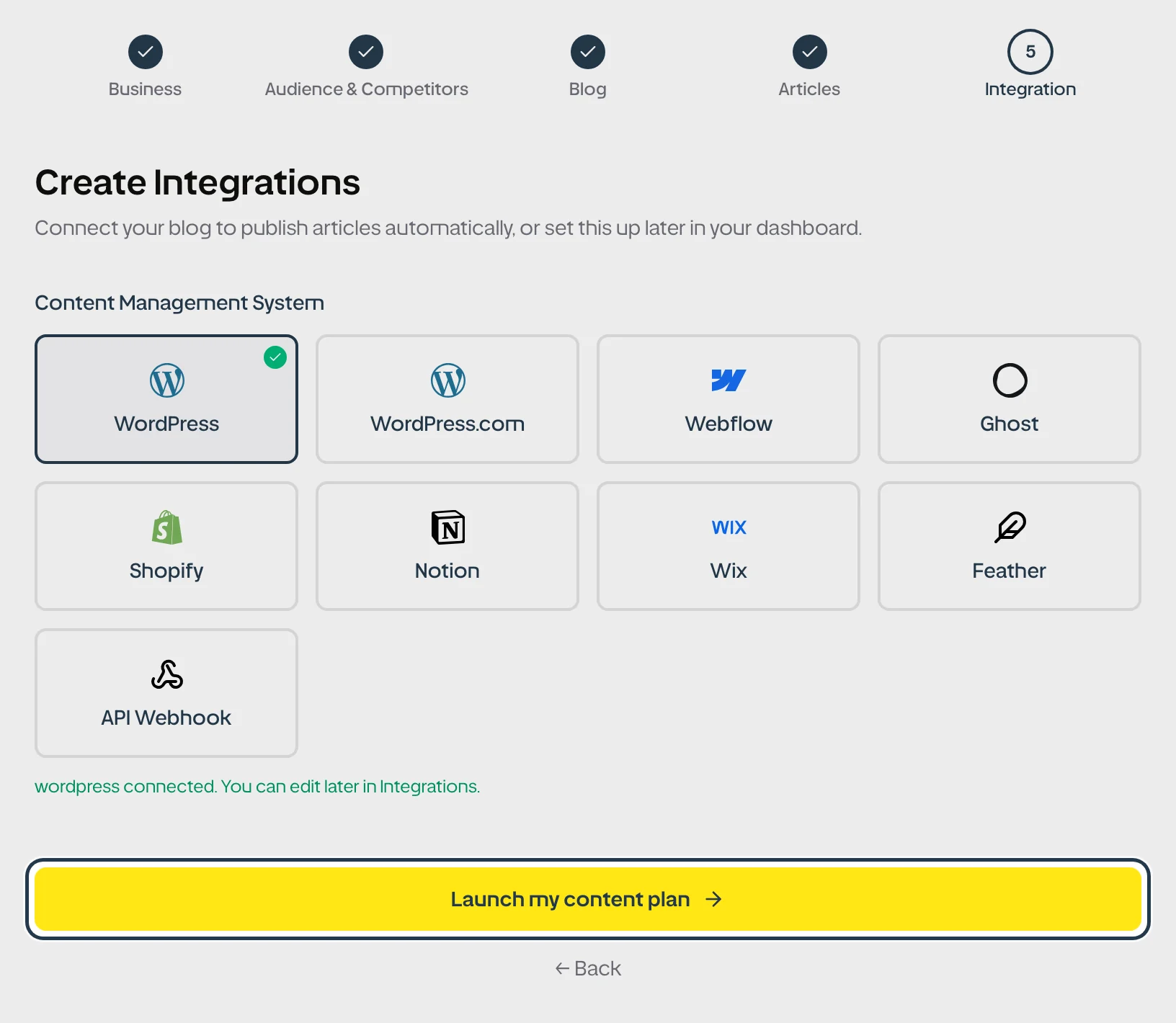
| Integration | Connect the platform your blog runs on, or click Skip and connect it later in Integrations. A platform you pick without connecting isn't saved. |
Tip
You don't have to get every answer right now. Your business can be changed later in Settings, your article choices in Content Settings, and your blog's connection in Integrations.
3. Choose your plan
The last step shows Choose your plan. Click Start 7-day free trial on Starter, or Pay if your business has already had a trial. For Growth, talk to our team. Pay for your plan explains the trial and monthly payments.
Are you an existing client? You don't need to pay here. We switch your account on and email you.
4. Launch your content plan
Once your trial or plan is on, the button reads Launch my content plan. Click it.
Note
Existing clients: if the plans are still showing, your account isn't switched on yet. Wait for our email, then open Telliscope again.
The Content Planner opens while Telliscope builds your plan, which usually takes 2 to 6 minutes. The window shows each step as it happens:
- Reading your website
- Researching competitors and search demand
- Building your content plan: your articles go on the calendar.
- Writing your first article
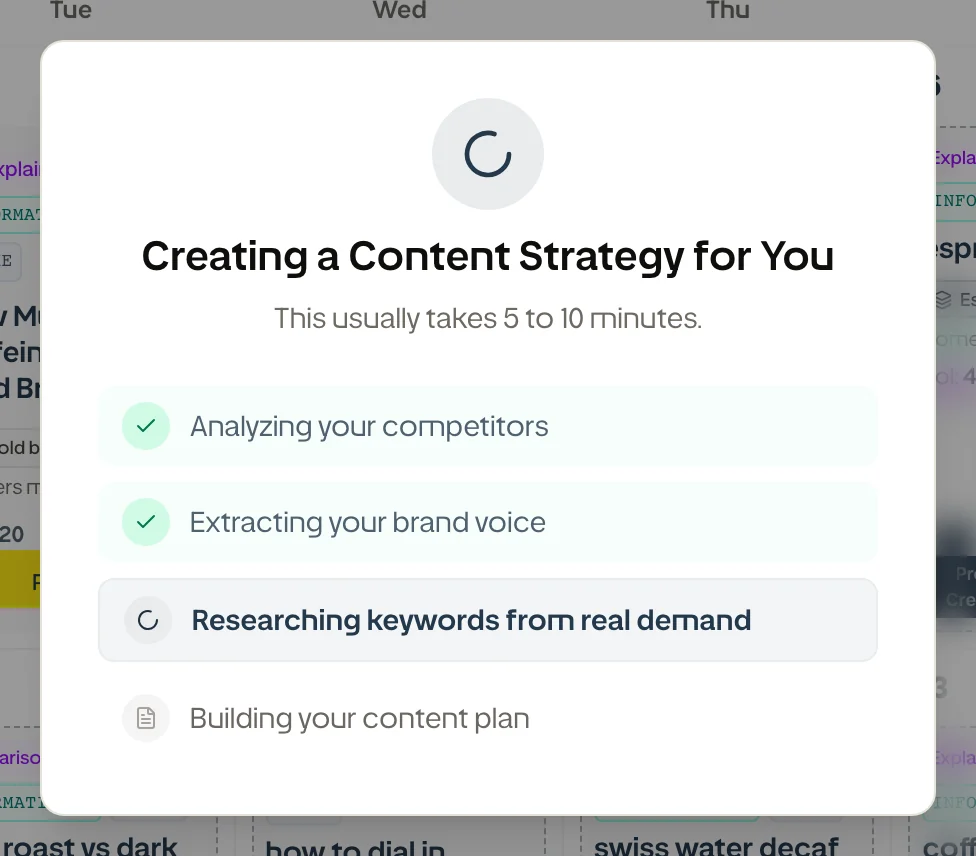
Your plan is ready after the third step, and your first article is written next, in about 2 minutes. You don't have to wait for it: click See your content plan to look around meanwhile. On the calendar, the first article's card reads Writing… until the article is done, then the article takes its place.
If the window is still open when the first article is done, click Open your first article to read it, or click Or explore the calendar first.
If the first article couldn't be written, the window says your plan is ready and shows Create & Publish First Article. Click it to write the first one straight away. To look around first, click Or explore the calendar first: the first article is then written in the next daily run, within a day, or at once when you click Pre-Create or Create & Publish on its card.

What happens every day
Your plan sets how many articles you get each month, and they are spread evenly across the month. On each scheduled day, Telliscope writes that day's article. If your blog is connected and Auto-publish articles is on in Content Settings, the article is published for you. Otherwise it waits in the Content Planner for you to review and publish.
Note
Articles go to your blog on their own only when both are true: your blog is connected in Integrations, and Auto-publish articles is on in Content Settings.
Your Overview
Overview is the first page you see. It shows how your articles are doing and what needs you, for the site chosen at the top.
- Organic clicks, Keywords improving, Top 10 rankings and Articles published: the period you choose at the top right (Last 7 days, Last 30 days, Last 90 days, Last 6 months or Last 12 months), each against the same length of time just before it. Last 12 months isn't compared, because Google keeps only 16 months of Search Console data. The first three come from Google Search Console; until it is connected, they say so.
- Google Search Console performance: your clicks and impressions across the period, as weekly totals over 6 and 12 months. Once one of your articles is live, All pages and Our articles switch the chart and Organic clicks between your whole site and your articles. View in Search Console opens the same report in Google. When Google's numbers for your site start inside the period, a line under the chart gives the first day.
- Content pipeline: where every article stands right now: Planned, Drafts, Ready to publish, Scheduled and Published. Click a stage to see its articles.
- Attention needed: only what needs you, such as drafts or improvements waiting for your approval, rewrites ready to publish, or an article that failed to publish, with a link to fix it. When nothing needs you, it says so.
- Content opportunities: a page close to the first page of Google that is worth improving, and the next topic group to write.
- AI visibility: how often AI answers name and link your site for the searches it tracks, with Open AI visibility for the details. See AI visibility.
- Coming up next: the next dates on your calendar. Recent activity: what Telliscope did lately.
The sidebar's Content usage shows how many articles of this billing cycle's allowance are used, and the day it resets.
Note
Google reports Search Console numbers two to three days late, so the period ends on the latest day Google has reported. The line at the bottom of the Overview names the dates. A comparison appears only when the earlier period has enough days of data.
If your plan ends
When your plan ends or is paused, a note at the top of every page says so, and new articles stop until it is switched back on. Write to support@telliscope.app to renew.

Next
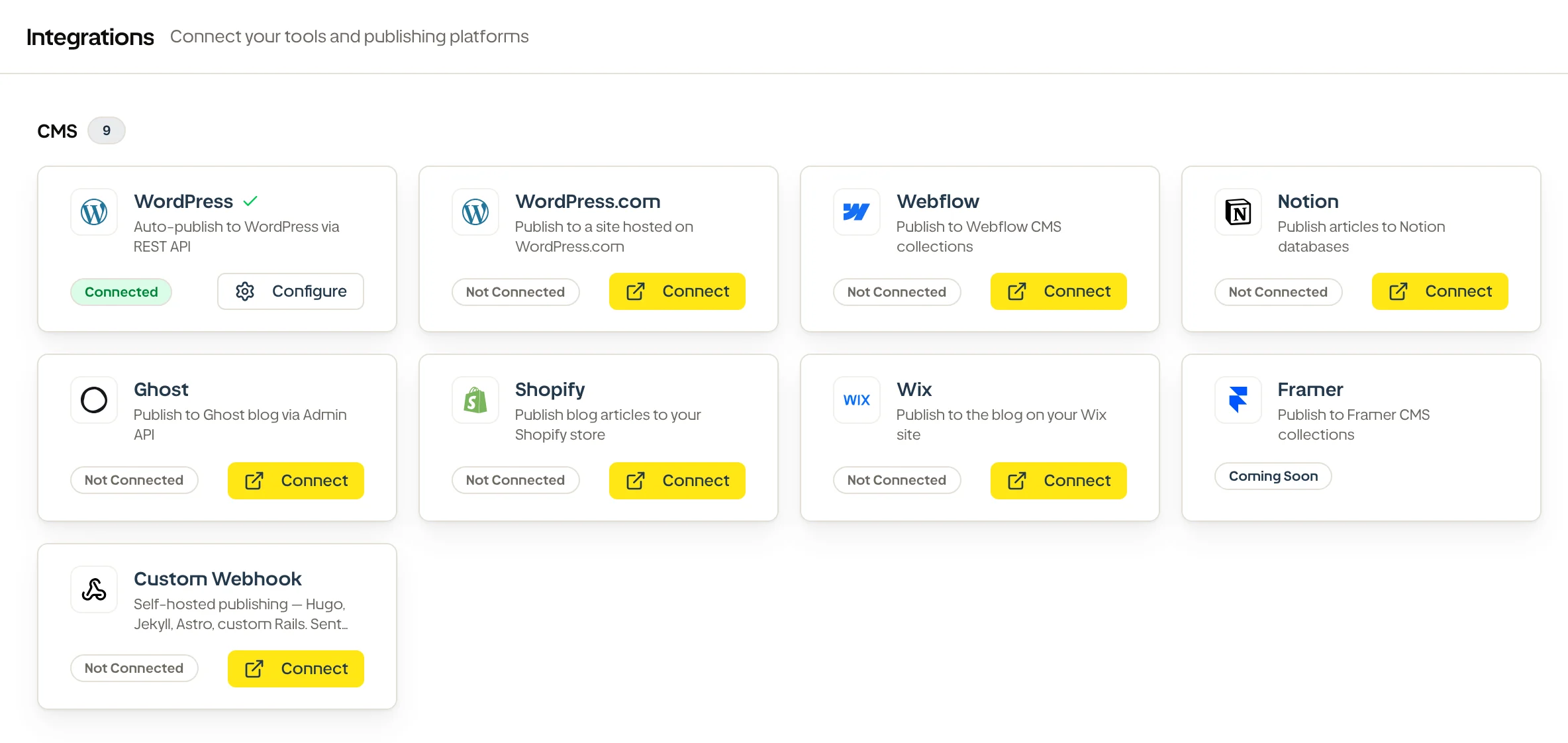
- Connect WordPress, Webflow, Shopify or another platform, so articles publish on their own.
- Connect Google Search Console, so Telliscope can see how your articles rank.
- Your content plan and Edit and publish an article.