
This connection lets Telliscope publish articles to the blog on your Wix site.
What you need
- A Wix site with the Wix Blog app, and at least one post on its blog.
- A Wix API key from the Wix account that owns the site, with the Wix Blog and Manage Site Media permissions.
- Your Wix site ID.
Warning
Wix accepts a key only on sites owned by the account that generated it. If you manage someone else's site as a collaborator, the owner (or a co-owner) generates the key in their own account.
In Wix
- Signed in to the Wix account that owns the site, open the API Keys page and click Generate API Key.
- Name the key. Under All site permissions, click See all, then select Wix Blog and Manage Site Media.
- If the key can be limited to some sites, include the site with your blog.
- Click Generate Key and copy the key.
- Open your site's dashboard. The site ID is the part of the address after /dashboard/. Copy it.
Only the account's owner and co-owners can generate keys. Wix explains API keys and site IDs in its developer docs.
In Telliscope
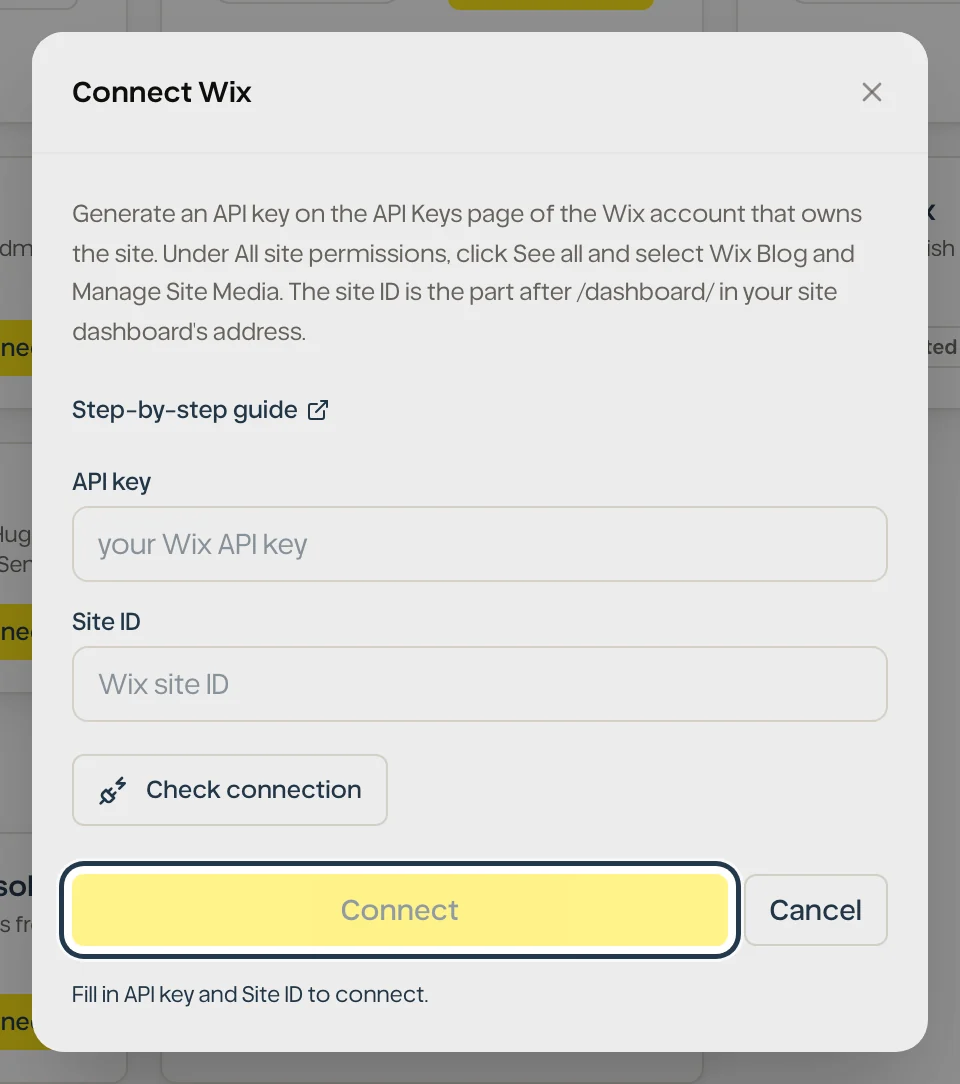
- Open Integrations and click Connect on the Wix card.
- Fill in API key and Site ID.
- Click Check connection. It reads your blog the way a publish does, without changing anything, then says whether the key works for this site, or what to fix.
- Click Connect. It stays greyed out until both boxes are filled in, and the line under it names any box still empty.
To change the details later, click Configure on the card, change what you need and click Update credentials. Leave the API key empty to keep the one already saved: its box reads Saved. Leave blank to keep it. Once connected, the Wix card has its own Check connection button.
Note
Links between your articles use Main blog address in Content > Settings > Blog. Wix puts each blog post under /post on your site, so set it to your site's address followed by /post, for example https://www.example.com/post. If you changed that part of the address in Wix, use yours.
What gets published
An article goes out when you click Approve & Publish on it, or on its scheduled day when Auto-publish articles is on in Content Settings. It is published on your blog with its title, URL slug, cover image and body: headings, paragraphs, lists, quotes, tables, images and links, formatted as in Telliscope, with a blank line between them as the Wix editor makes them. Wix posts get no schema markup.
- The cover image is the post's cover in your blog's feed and when the post is shared. It also opens the post itself, because Wix doesn't show a post's cover on the post's page.
- The meta description becomes the post's SEO description in Wix and its excerpt, and the article's keyword becomes its main SEO keyword.
- Wix shows images only from your site's Media Manager, so the cover and the article's images are copied there first. An image is copied once and reused when the article is published again.
- The post's author is the author of the newest post on your blog.
Republish sends your latest text to the same post and publishes it again, replacing any changes made to the post in Wix. Deleting the article in Telliscope moves the post to your blog's trash, where you can restore it.
Warning
Wix needs one post already on your blog to take an author from. On a new blog, publish one post yourself in Wix first.
What Check connection tells you
- "Wix refused the API key": copy the whole key again, or generate a new one.
- "Wix refused this key for this site": the key was generated in another Wix account, cannot reach this site, or lacks the Wix Blog permission. Generate a new key in the account that owns the site, for this site, with Wix Blog selected.
- "Wix found no blog on this site": check the Site ID, and that the site has the Wix Blog app.
- "Your blog has no post yet": publish one post on your Wix blog yourself first.
- "The key has no Manage Site Media permission": posts would go out without their images. Generate a key that also has Manage Site Media.
If it doesn't work
Open the article and expand Advanced > Publish history to see the error.
- "Wix auth failed": Wix refused the key for this site. Click Check connection on the Wix card to see why.
- "Wix needs an author for this post": your blog has no post yet to take an author from. Publish one post on your Wix blog yourself, then publish the article again.
- "Wix could not find a blog on this site": check the site ID, and that the site has a Wix blog.
- "Missing credentials for wix": the API key or the site ID is empty. Enter both fields again.
- The post is live but has no images: the API key doesn't have the Manage Site Media permission. Generate a key with it, enter it, then click Republish.
After fixing an error, click Approve & Publish on the article again.